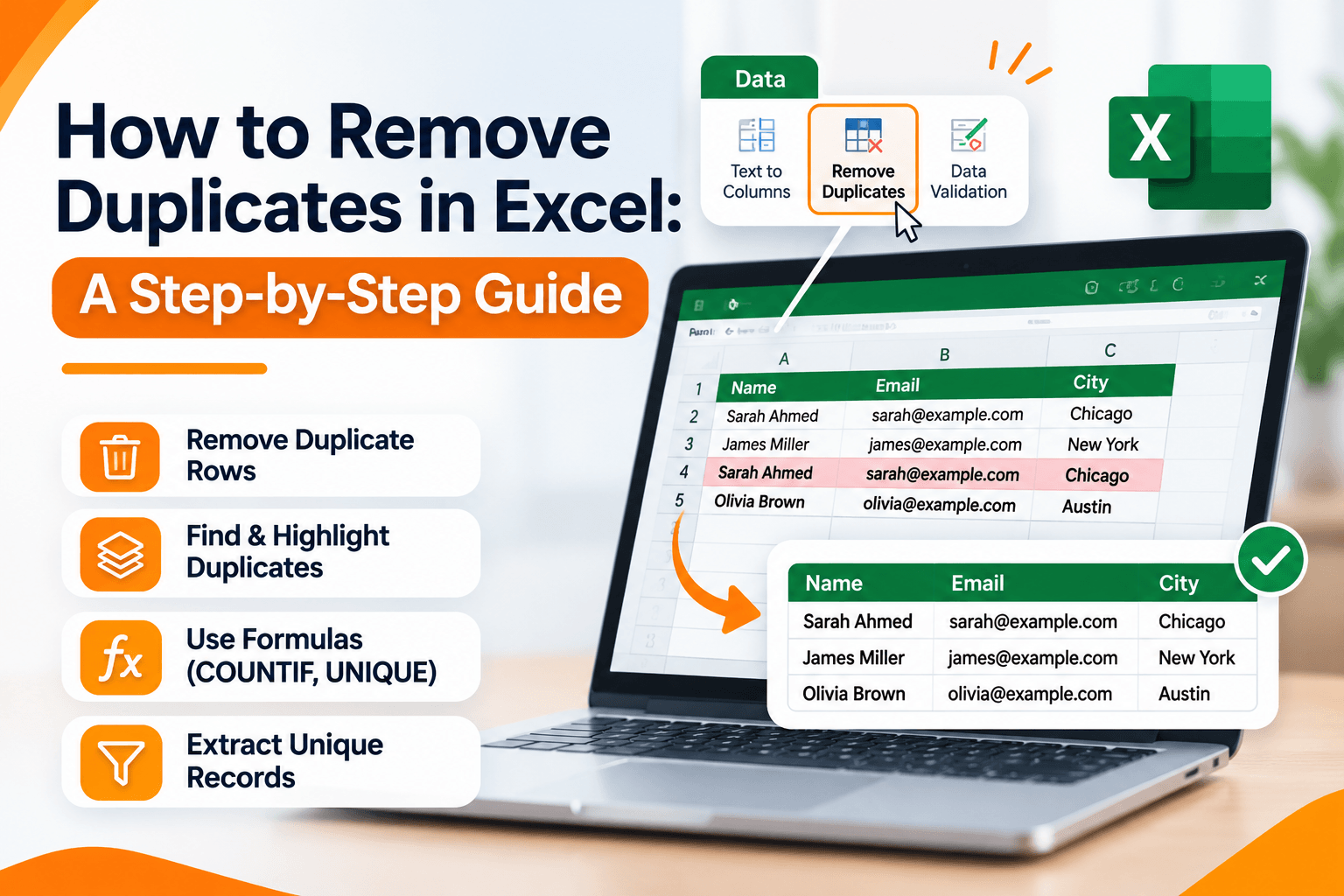
Duplicate data causes problems in a spreadsheet. Repeated customer records, product entries, email addresses, or transaction details can throw off calculations, reports, and decisions. If you use Excel to organize or analyze information, knowing how to remove duplicates is a core data-cleaning skill.
Excel gives you several ways to find and remove duplicate values. You can use the built-in Remove Duplicates tool, highlight repeats with Conditional Formatting, find duplicates with formulas such as COUNTIF, or pull unique records with the UNIQUE function.
This guide shows how to remove duplicate rows, find duplicates in one column or across several columns, and pick the right method for the job. These techniques help you prepare a more accurate spreadsheet and make the data easier to analyze.
What Are Duplicate Values in Excel?
Duplicate values are entries that appear more than once. They show up when data is imported from different sources, typed in by hand, or combined from several worksheets.
For example, imagine a customer list with these records:
| Customer ID | Customer Name | Email Address |
|---|---|---|
| 101 | Sarah Ahmed | sarah@example.com |
| 102 | James Miller | james@example.com |
| 103 | Sarah Ahmed | sarah@example.com |
| 104 | Olivia Brown | olivia@example.com |
Sarah Ahmed appears twice with the same email address. If both rows are the same customer, one record may be unnecessary. If the rows are separate transactions or different customer IDs, deleting one without checking can lose information.
Decide what makes a record a duplicate before you delete anything. A repeated name by itself does not always mean the whole row is duplicated.
Why Should You Remove Duplicates in Excel?
Duplicate records can hurt spreadsheet quality and the accuracy of your analysis. Cleaning repeated entries gives you more reliable information.
- Improve data accuracy: Removing unnecessary repeated records helps prevent incorrect totals and counts.
- Avoid double counting: Duplicate sales, orders, or customer entries can make business results appear higher than they actually are.
- Make reporting more reliable: Clean data supports more accurate charts, summaries, and dashboards.
- Improve data organization: A well-structured dataset is easier to search, filter, and manage.
- Support better decisions: Accurate information helps analysts and business teams make decisions based on reliable results.
Data cleaning is part of the wider analysis process. To see how information is gathered before it is prepared for analysis, explore our guide to data collection methods and techniques.
Before Removing Duplicates: Prepare Your Excel Data
Before you remove duplicates, protect the original information.
- Create a backup: Copy the original worksheet or save another version of your workbook.
- Check your column headings: Make sure each column has a clear heading, such as Customer ID, Name, Email, or Order Number.
- Define what counts as a duplicate: Decide whether a duplicate means a repeated value in one column or an identical combination of values across multiple columns.
- Check for inconsistent formatting: Look for extra spaces, inconsistent spelling, and different formats that may affect matching.
- Review your selected range: Make sure you include the complete dataset and all relevant columns.
Important: Excel's Remove Duplicates feature deletes repeated records from the selected range. It normally keeps the first occurrence and removes subsequent matching records. Always review the selected columns before confirming the operation.
How to Remove Duplicates in Excel: 6 Methods
There is more than one way to remove or identify duplicate data. The right method depends on whether you want to delete repeated records, highlight them for review, or create a separate list of unique values.
Method 1: Remove Duplicates Using Excel's Built-In Tool
The Remove Duplicates tool is the fastest way to delete repeated values from a range or an Excel table. Use it when you already know which columns decide whether a record is a duplicate.
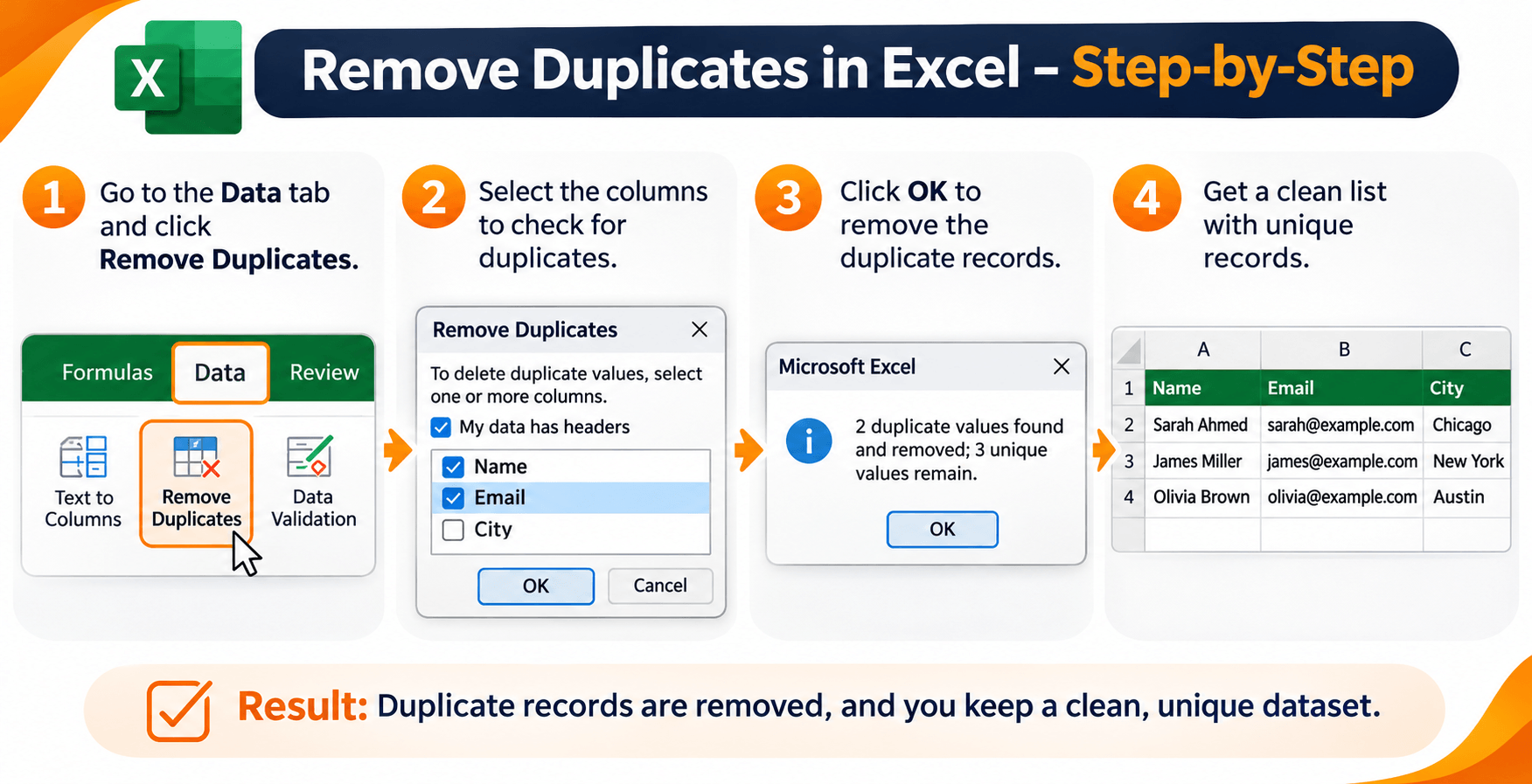
Follow these steps:
- Open your Excel workbook and select a cell inside the dataset.
- Go to the Data tab in the Excel ribbon.
- Find the Data Tools group.
- Click Remove Duplicates.
- In the dialog box, select the columns Excel should compare to identify duplicate records.
- Check My data has headers if your first row contains column headings.
- Click OK to remove the duplicate records.
- Review the confirmation message to see how many duplicate values were removed and how many unique values remain.
Excel keeps the first matching record and removes later ones. To undo the change right away, use Ctrl + Z or select Undo.
Example: If you have a customer list and want to remove records where the Customer ID is repeated, select only the Customer ID column in the Remove Duplicates dialog box. Excel will use that column to identify matching records and remove the corresponding duplicate rows from the selected range.
Method 2: Remove Duplicates Based on Multiple Columns
A repeated value in one column does not always mean the whole record is a duplicate. Two customers can share a name and still have different email addresses or customer IDs.
In that case, compare several columns to decide whether the full record is a duplicate.
Imagine this sales data:
| Customer | Product | Order Date | Amount |
|---|---|---|---|
| Sarah | Laptop | 10-Jan-2026 | $900 |
| James | Mouse | 11-Jan-2026 | $25 |
| Sarah | Laptop | 10-Jan-2026 | $900 |
| Sarah | Keyboard | 12-Jan-2026 | $50 |
The first and third records match across all four columns. The fourth record is the same customer, but a different purchase.
To remove duplicate records based on multiple columns:
- Select a cell inside your dataset.
- Open the Data tab.
- Click Remove Duplicates.
- In the dialog box, select the columns you want Excel to compare, such as Customer, Product, Order Date, and Amount.
- Make sure the header option is selected if your dataset contains headings.
- Click OK.
Excel compares the combination of the selected columns. If two records match on every selected column, one occurrence is removed.
Important: When you select only some columns for comparison, Excel still removes the entire matching row from the selected range. This means values in other columns may also be deleted. Review your selection carefully before proceeding.
Method 3: Highlight Duplicate Values Using Conditional Formatting
If you want to find duplicates before you delete them, use Conditional Formatting. It highlights repeated values and leaves the original data unchanged.
This is useful when you want to review duplicate email addresses, customer names, product codes, or invoice numbers.
Follow these steps:
- Select the column or range of cells you want to check.
- Go to the Home tab.
- Click Conditional Formatting.
- Select Highlight Cells Rules.
- Choose Duplicate Values.
- Select a formatting style, such as a light red fill with dark red text.
- Click OK.
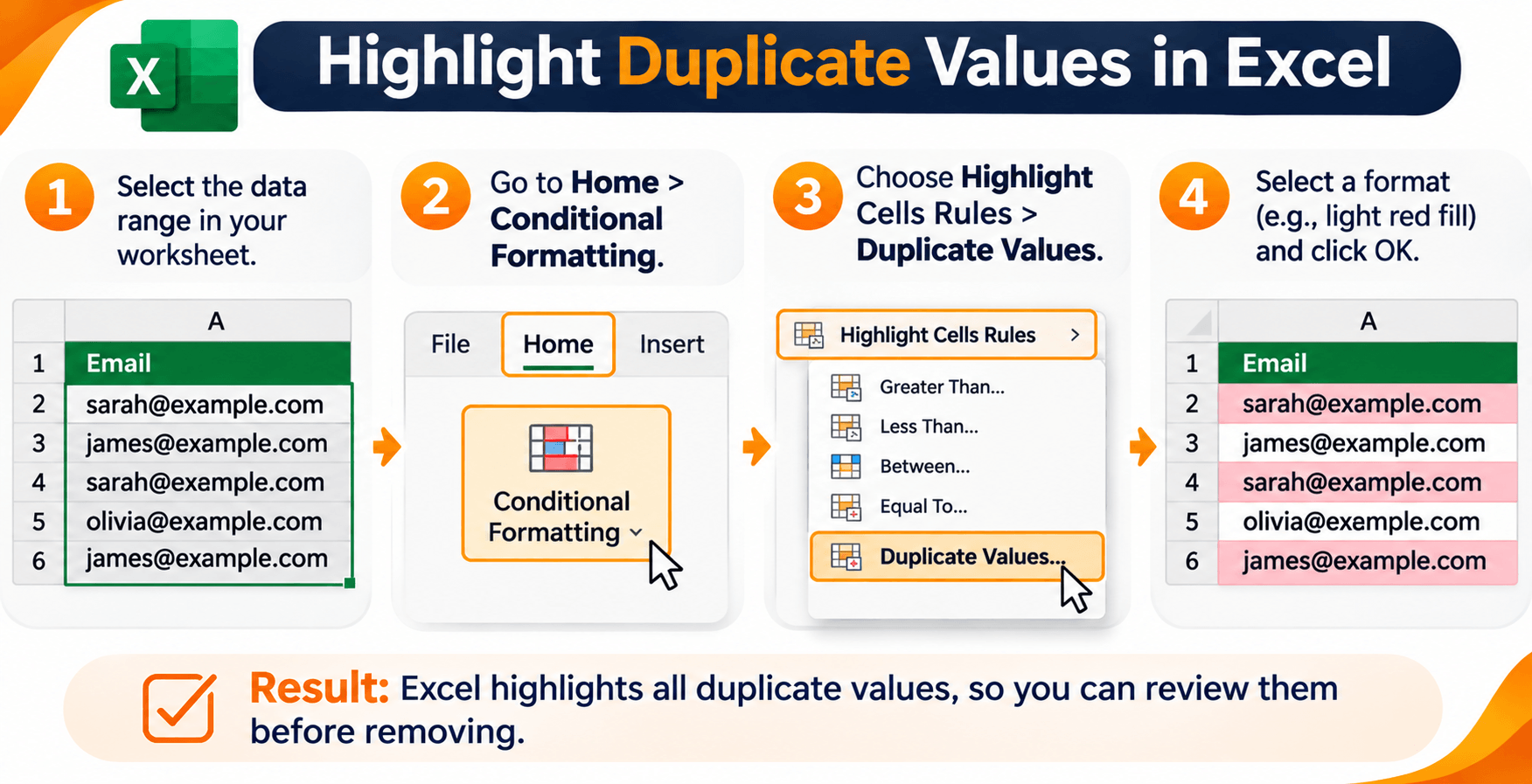
Excel highlights values that appear more than once in the selected range. You can review those cells and decide what to keep.
This is a good first step when you are not sure a repeat is a true duplicate. You can inspect the data before you make a permanent change.
Method 4: Find Duplicates in Excel Using the COUNTIF Formula
You can also use formulas to find duplicate values. COUNTIF counts how many times a value appears in a range.
For example, customer email addresses are in cells A2 through A10. You want to see which addresses appear more than once.
Enter this formula in cell B2:
=COUNTIF($A$2:$A$10,A2)Then copy the formula down the column.
The formula returns how many times each email address appears in the range.
| Email Address | COUNTIF Result | Meaning |
|---|---|---|
| sarah@example.com | 2 | Duplicate |
| james@example.com | 1 | Unique |
| sarah@example.com | 2 | Duplicate |
| olivia@example.com | 1 | Unique |
To show a label instead of a count, use this formula:
=IF(COUNTIF($A$2:$A$10,A2)>1,"Duplicate","Unique")The formula shows Duplicate when a value appears more than once and Unique when it appears only once.
Tip: COUNTIF is useful when you want to identify repeated values while keeping the original records unchanged. You can filter the results to review duplicate entries separately.
Method 5: Extract Unique Values Using the UNIQUE Function
If you use a supported version of Excel, UNIQUE can build a separate list of distinct values from the original data. Unlike Remove Duplicates, it does not delete the source records.
Suppose customer names are in cells A2 through A10. To return unique names, enter this formula in an empty cell:
=UNIQUE(A2:A10)Excel returns the distinct values and fills the cells below the formula as needed. That behavior is a dynamic array, or spill range.
You can also use UNIQUE with several columns to return unique rows:
=UNIQUE(A2:D10)This returns distinct combinations of values across columns A through D.
If you want only values that appear exactly once, not values that are merely distinct, use:
=UNIQUE(A2:A10,,TRUE)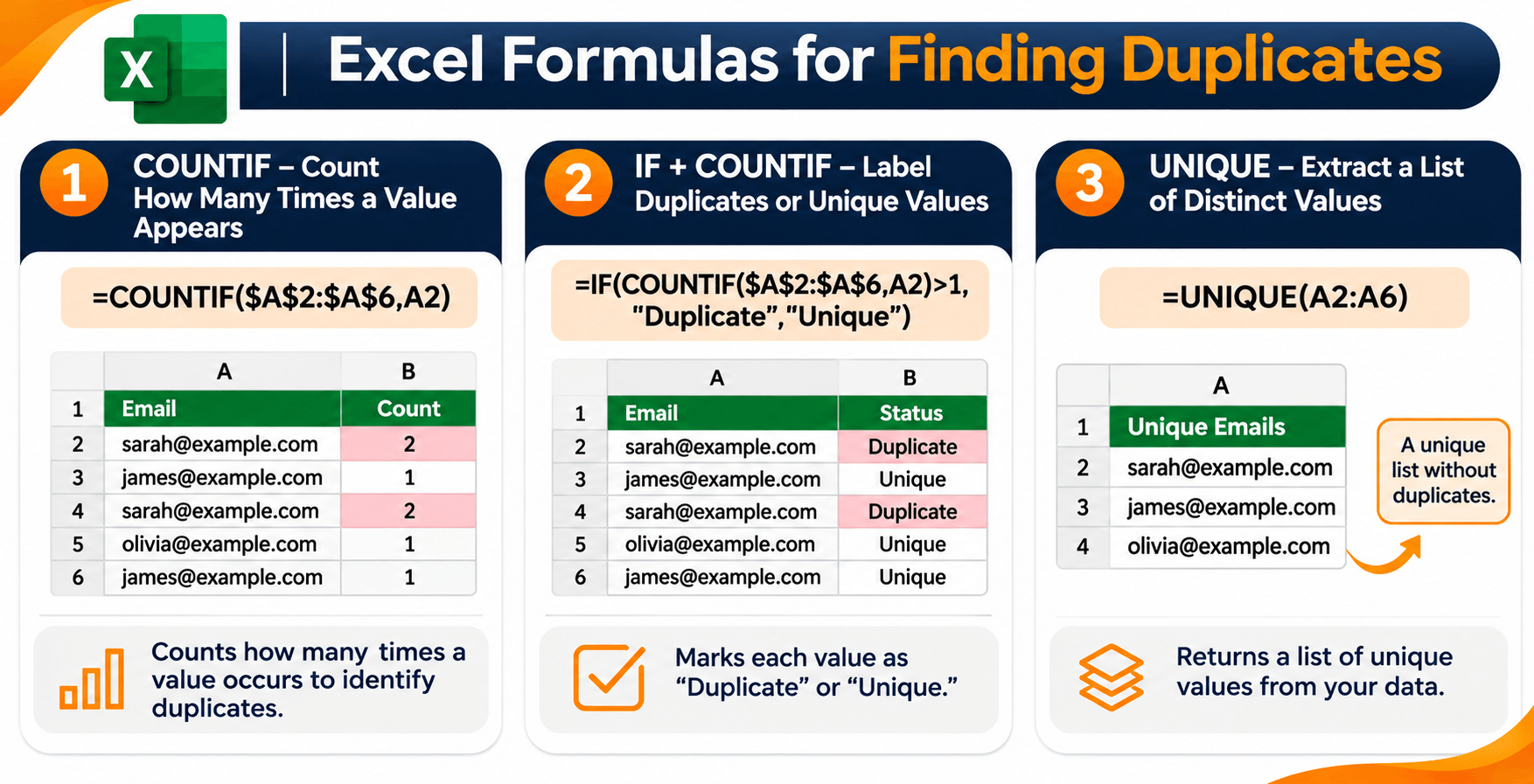
Note: The UNIQUE function is available in Microsoft 365, Excel for the web, and supported newer Excel versions such as Excel 2021 and Excel 2024. It may not work in older Excel versions.
Method 6: Use Advanced Filter to Copy Unique Records
Advanced Filter is another way to extract unique records without deleting the original dataset. It can filter unique values in place or copy the results somewhere else.
Follow these steps:
- Select the complete dataset, including its column headings.
- Open the Data tab.
- In the Sort & Filter group, select Advanced.
- Choose Copy to another location if you want to preserve the original list.
- Check that the List range contains your source data.
- Choose a destination cell in the Copy to field.
- Select Unique records only.
- Click OK.
Excel copies the unique records to the destination you chose. The original dataset stays unchanged.
Use this when you need a clean list for reporting, comparison, or further analysis and you do not want to delete source records.
How to Remove Duplicates from One Column in Excel
Sometimes you only need to remove repeated values from one column, such as email addresses, phone numbers, product IDs, or customer names.
To remove duplicates from one column:
- Select the cells in the column you want to clean, including the heading if one exists.
- Go to Data and select Remove Duplicates.
- In the dialog box, select only the relevant column.
- Confirm whether your data has headers.
- Click OK.
Excel finds repeated values in the selected column and removes the matching duplicate rows from the selected range. If other columns hold related information, select the full dataset so the records stay aligned.
How to Remove Duplicates in Excel Without Deleting the Original Data
If the original spreadsheet needs to stay unchanged, do not run Remove Duplicates on the source data. Build a separate list of unique records instead.
You can do this in two ways:
- Use the UNIQUE function: Enter
=UNIQUE(A2:A100)in an empty area of your worksheet to generate a separate list of unique values. - Use Advanced Filter: Select Copy to another location and check Unique records only to extract unique records into a different area.
Both options give you a clean list and leave the original records in place. That helps when you are cleaning business data, preparing reports, or checking customer information.
Common Problems When Removing Duplicates in Excel
Sometimes Excel does not flag duplicates the way you expect. Inconsistent formatting, extra spaces, or small differences in the records can cause that.
| Problem | Why It Happens | What You Can Do |
|---|---|---|
| Duplicates are not detected | Values may contain extra spaces or inconsistent characters. | Use TRIM to remove unnecessary spaces and review the values. |
| Similar names are treated as different | Spelling, punctuation, or formatting may vary. | Standardize the text before checking for duplicates. |
| Excel removes records you wanted to keep | The wrong comparison columns may have been selected. | Review the selected columns and restore the original data if needed. |
| UNIQUE formula does not work | Your Excel version may not support dynamic array functions. | Use Advanced Filter or Remove Duplicates instead. |
| Duplicate counts look incorrect | Blank cells, inconsistent values, or unexpected data formats may affect the result. | Check the source range and standardize the data before counting. |
Remove Extra Spaces Using the TRIM Function
Extra spaces can make values look different even when the text looks almost the same. Excel may treat "Sarah Ahmed" and "Sarah Ahmed " as different text values.
Use TRIM to remove unnecessary spaces. If the original value is in cell A2, enter this formula in another column:
=TRIM(A2)Copy the formula down. After you review the cleaned results, copy them and use Paste Special > Values if you want to replace the original text. Keep a backup before you replace source data.
Best Practices for Managing Duplicate Data in Excel
Removing duplicate records is only one part of keeping a spreadsheet clean. These practices help you reduce duplicate data and improve the quality of your work.
- Use unique identifiers: Assign customer IDs, order numbers, or product codes to distinguish records accurately.
- Standardize data entry: Use consistent spelling, formatting, date formats, and naming conventions.
- Check data before importing: Review records when combining information from different files or systems.
- Use Excel tables: Organize structured data in tables to make filtering, sorting, and analysis easier.
- Review duplicates before deleting: Highlight or count repeated values first when you are unsure whether they are true duplicates.
- Keep a backup: Preserve the original data before making permanent changes.
- Document cleaning steps: Record which columns and rules were used to identify duplicate records, especially when working with business datasets.
Once the dataset is clean, you can use it for reports and visualizations. Learn how to present analyzed information in our guide to Excel charts and graphs.
How Excel Data Cleaning Supports Better Data Analysis
Removing duplicate records prepares a spreadsheet for accurate analysis. Data preparation also means checking missing information, standardizing formats, validating records, and organizing data for reporting.
These skills matter when you work with customer databases, sales reports, financial records, survey results, and operational data. After the information is prepared, analysts can use formulas, charts, and other tools to find patterns and explain what the data shows.
For example, a sales analyst who removes duplicate order records before calculating total revenue is less likely to count the same transaction twice. A marketing analyst can clean repeated customer email addresses before reviewing campaign lists.
Clean data also makes visual reports easier to build. To get better at turning spreadsheet data into insights, explore our guide to creating charts and graphs in Excel.
Frequently Asked Questions About Removing Duplicates in Excel
1. How do I remove duplicates in Excel quickly?
Select a cell in your dataset, open the Data tab, and click Remove Duplicates. Choose the columns Excel should compare, confirm whether your data has headers, and click OK. Excel removes matching records and keeps the first occurrence.
2. How do I remove duplicate rows in Excel?
Select the complete dataset, including every relevant column. Open Data > Remove Duplicates, select the columns that define a duplicate row, and click OK. Excel removes later rows that match that column combination.
3. How do I remove duplicates from one column in Excel?
Select the column or the complete related dataset, open Data > Remove Duplicates, and select only the column you want to use for comparison. Confirm the selection and click OK. Excel removes the matching duplicate records from the selected range.
4. How do I highlight duplicates in Excel without deleting them?
- Select the range you want to check.
- Go to the Home tab.
- Click Conditional Formatting.
- Select Highlight Cells Rules.
- Choose Duplicate Values.
- Pick a formatting style and click OK.
Excel highlights repeated values and does not delete them.
5. What formula can I use to find duplicates in Excel?
Use COUNTIF to identify repeated values. Enter this formula next to the first value, then copy it down:
=COUNTIF($A$2:$A$100,A2)The formula counts how many times the value in A2 appears in the selected range. A result greater than 1 means the value is a duplicate.
6. What is the difference between UNIQUE and Remove Duplicates in Excel?
UNIQUE creates a separate list of distinct values or rows and leaves the original data unchanged. Remove Duplicates deletes repeated records from the selected range. You can undo that action immediately.
7. Can I remove duplicates based on multiple columns in Excel?
Yes. Open Data > Remove Duplicates and select the columns Excel should compare. Excel uses the combination of those columns to identify duplicate records. Matching rows are removed from the selected range.
8. Why is Excel not detecting some duplicate values?
The values may contain extra spaces, inconsistent spelling, different characters, or formatting differences. Clean and standardize the data before you run the duplicate check. TRIM can remove unnecessary spaces from text.
9. Does Excel keep the first duplicate value or the last one?
Remove Duplicates keeps the first occurrence of a matching record and removes later occurrences. If you need to keep a different record, sort the data into the order you want before you remove duplicates.
Improve Your Data Analysis Skills with WorkForce Institute
Knowing how to remove duplicates in Excel is one step in preparing accurate data. Professional data analysis also takes a wider set of skills, including data cleaning, spreadsheet management, visualization, statistical analysis, and the use of modern AI tools.
Whether you are starting in data analytics or strengthening skills you already have, learning how to organize, clean, and interpret data helps you work with real datasets.
Start building the skills needed to turn raw spreadsheet data into accurate, useful insights.