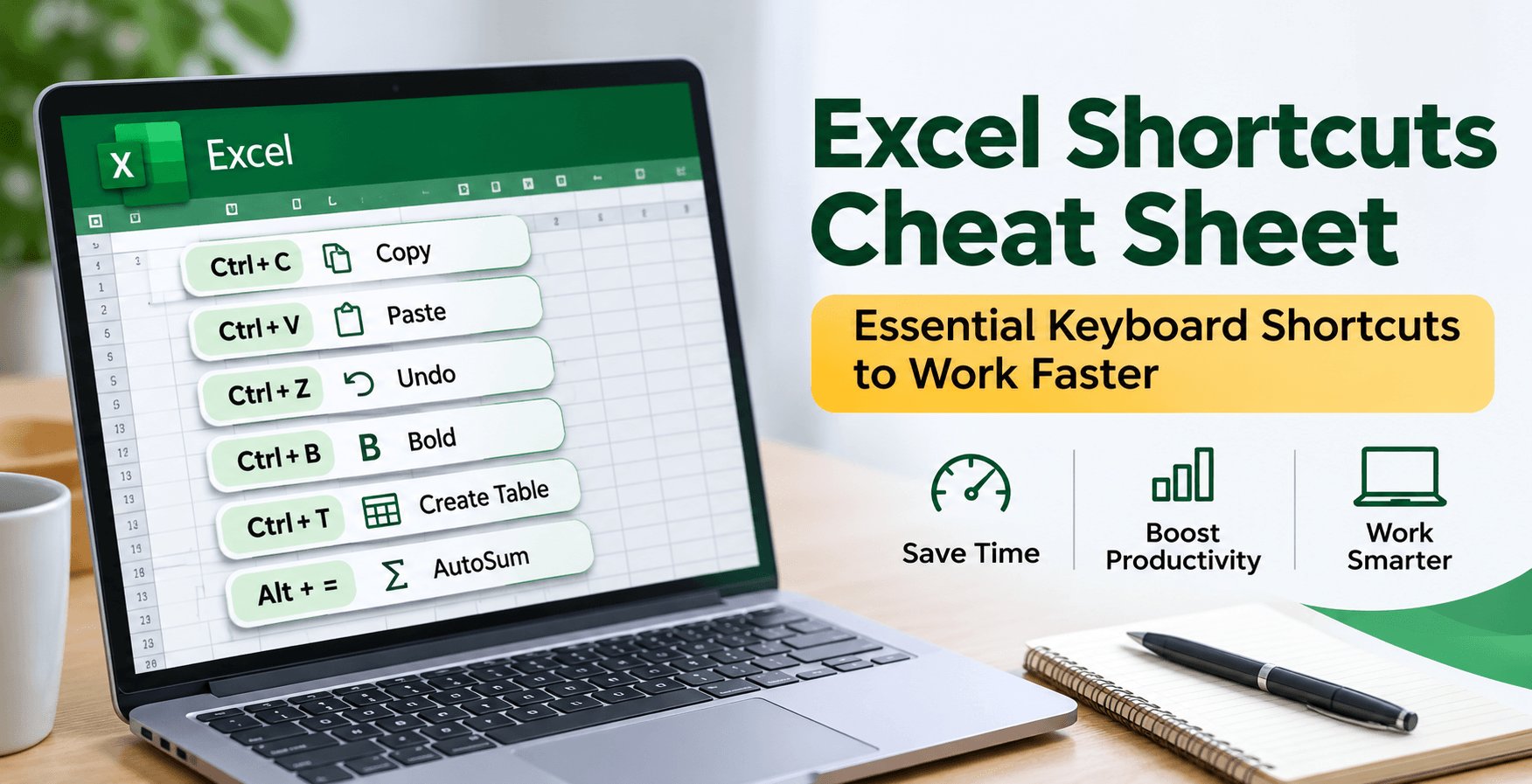
Excel is one of the tools people use most to organize information, look at data, write reports, and handle everyday business tasks. A large sheet gets slow when every action needs the mouse.
The right Excel shortcuts let you finish repetitive work faster, move around a worksheet more easily, and spend less time formatting and analyzing. That helps beginners, students, business users, and data analysts.
This Excel shortcuts cheat sheet covers more than 50 useful Windows shortcuts, including navigation, data entry, formatting, formulas, tables, and data management. The examples show when to use them.
Why Should You Learn Excel Keyboard Shortcuts?
Excel shortcuts are key combinations that run common actions without opening menus or the ribbon. They help most on large datasets and on tasks you repeat.
Here are some important benefits of learning Excel keyboard shortcuts:
- Save time: Complete common spreadsheet tasks with fewer clicks.
- Improve productivity: Move between cells, worksheets, and workbooks more efficiently.
- Reduce repetitive work: Apply formatting, insert formulas, and manage data quickly.
- Improve data accuracy: Use consistent commands when editing and managing spreadsheet information.
- Work more efficiently with large datasets: Navigate and select data ranges without scrolling through every row.
1. Essential Excel Shortcuts for Everyday Tasks
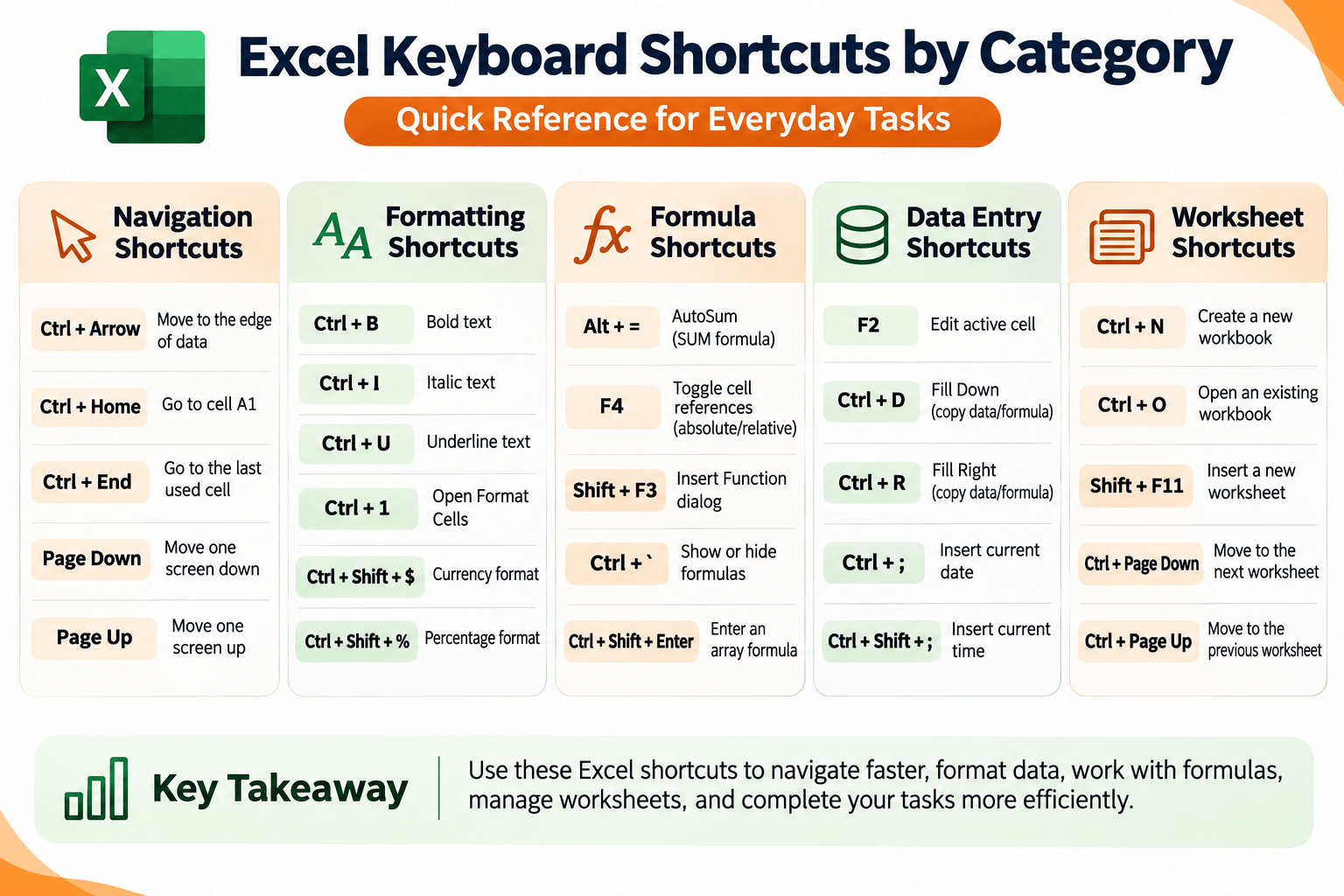
Start here if you are new to Excel. These cover the actions you use when you create, edit, and manage a spreadsheet.
| Shortcut | Action | When to Use It |
|---|---|---|
| Ctrl + C | Copy selected cells | Duplicate data or formulas. |
| Ctrl + X | Cut selected cells | Move data to another location. |
| Ctrl + V | Paste copied content | Insert copied or cut information. |
| Ctrl + Z | Undo | Reverse your last action. |
| Ctrl + Y | Redo | Restore an action you previously undid. |
| Ctrl + S | Save workbook | Save your latest changes. |
| Ctrl + P | Open print settings. | |
| Ctrl + F | Find | Search for specific values or text. |
| Ctrl + H | Replace | Find and replace values across a worksheet. |
| Ctrl + A | Select data or worksheet | Select the current data region or the entire worksheet, depending on context. |
2. Excel Navigation Shortcuts
Scrolling through thousands of rows is slow. These shortcuts jump between data ranges and parts of the sheet.
| Shortcut | Action | Practical Use |
|---|---|---|
| Ctrl + Arrow Key | Move to the edge of a data region | Jump to the last populated cell in a direction. |
| Ctrl + Home | Go to cell A1 | Return to the beginning of a worksheet. |
| Ctrl + End | Go to the last used cell | Check the final used area of a worksheet. |
| Page Down | Move one screen down | View the next section of a worksheet. |
| Page Up | Move one screen up | Return to the previous screen. |
| Alt + Page Down | Move one screen right | Navigate across wide spreadsheets. |
| Alt + Page Up | Move one screen left | Review columns to the left. |
| Ctrl + Page Down | Move to the next worksheet | Switch between workbook tabs. |
| Ctrl + Page Up | Move to the previous worksheet | Return to an earlier worksheet. |
| F5 | Open Go To | Jump directly to a specific cell reference. |
Example: Navigate a Large Dataset
Imagine a sales sheet with 10,000 records. Select a cell in the data and press Ctrl + Down Arrow to jump to the edge of that data region. You do not have to scroll to the bottom.
3. Excel Shortcuts for Formatting Cells
Formatting makes a sheet easier to read. These shortcuts apply common formats without hunting through the ribbon.
| Shortcut | Action | Purpose |
|---|---|---|
| Ctrl + B | Bold | Highlight headings or important values. |
| Ctrl + I | Italic | Apply italic formatting. |
| Ctrl + U | Underline | Underline selected text. |
| Ctrl + 1 | Format Cells dialog | Change number formats, borders, alignment, and more. |
| Ctrl + Shift + $ | Currency format | Format selected numbers as currency. |
| Ctrl + Shift + % | Percentage format | Display values as percentages. |
| Ctrl + Shift + # | Date format | Apply a date format. |
| Ctrl + Shift + ! | Number format | Apply a number format with two decimal places. |
| Alt + H + O + I | AutoFit column width | Adjust column width to fit its contents. |
| Alt + H + O + A | AutoFit row height | Adjust row height to fit its contents. |
Example: Format a Sales Report
Suppose you are preparing a monthly sales report with revenue, dates, and percentage growth. You can use:
- Ctrl + B to highlight column headings.
- Ctrl + Shift + $ to format revenue values as currency.
- Ctrl + Shift + % to display growth rates as percentages.
- Ctrl + 1 to access additional formatting options.
Those commands are enough to make the report easier to read.
4. Excel Shortcuts for Data Entry and Editing
A lot of Excel work is typing and updating records. These shortcuts help when you fill in forms, update rows, and repeat the same entry.
| Shortcut | Action | How It Helps |
|---|---|---|
| F2 | Edit active cell | Modify cell content without using the formula bar. |
| Alt + Enter | Insert a new line in a cell | Write multiple lines within one cell. |
| Ctrl + D | Fill Down | Copy the top cell's content or formula downward. |
| Ctrl + R | Fill Right | Copy content or formulas across selected cells. |
| Ctrl + Enter | Fill selected cells with an entry | Enter the same value in multiple selected cells. |
| Ctrl + ; | Insert current date | Add today's date as a fixed value. |
| Ctrl + Shift + ; | Insert current time | Add the current time as a fixed value. |
| Delete | Clear cell contents | Remove content while keeping the cells. |
| Ctrl + - | Delete cells, rows, or columns | Remove selected spreadsheet elements. |
| Ctrl + Shift + + | Insert cells, rows, or columns | Add new spreadsheet elements. |
5. Excel Shortcuts for Formulas and Functions
Formulas do the calculations. These shortcuts make it easier to enter one, check it, and change how a cell reference is locked.
| Shortcut | Action | Why It Is Useful |
|---|---|---|
| Alt + = | AutoSum | Quickly insert a SUM formula. |
| F4 | Toggle cell references | Cycle through relative, absolute, and mixed references while editing a formula. |
| Ctrl + ` | Show or hide formulas | Review formulas instead of calculated results. |
| Shift + F3 | Insert Function | Open the function selection dialog. |
| F9 | Calculate worksheets | Recalculate formulas in supported calculation contexts. |
| Ctrl + Shift + Enter | Enter an array formula | Used for legacy array formulas in older Excel versions. |
Example: Calculate Total Sales with AutoSum
Suppose monthly sales sit in cells B2 through B10. Select the cell below the figures and press Alt + =. Excel suggests a SUM formula. Press Enter to confirm it.
That is useful on a financial report, an expense tracker, or a monthly performance sheet.
6. Excel Shortcuts for Managing Data
Customer records, sales, and survey responses all need to be organized, not only typed in. These shortcuts help you review and manage that data.
| Shortcut | Action | Use Case |
|---|---|---|
| Ctrl + Shift + L | Turn filters on or off | Filter and review specific records. |
| Ctrl + T | Create a table | Convert a data range into an Excel table. |
| Alt + Down Arrow | Open a dropdown list | Open a filter or data-validation dropdown when available. |
| Ctrl + Space | Select a column | Select the entire column of the active cell. |
| Shift + Space | Select a row | Select the entire row of the active cell. |
| Ctrl + Shift + Arrow Key | Extend selection | Select a range to the edge of a data region. |
| Alt + F1 | Create an embedded chart | Generate a chart from selected data. |
| F11 | Create a chart sheet | Create a chart on a separate chart sheet. |
Example: Filter a Customer Dataset
Imagine a customer list with thousands of rows, and you only want one city. Press Ctrl + Shift + L to turn filters on, then use the dropdown in the City column to pick that location.
Filtering hides the other rows from view. It does not delete them or change the original data.
7. Excel Shortcuts for Working with Worksheets and Workbooks
A workbook often has a sheet for each month, department, or project. These shortcuts make that easier to manage.
| Shortcut | Action |
|---|---|
| Ctrl + N | Create a new workbook. |
| Ctrl + O | Open an existing workbook. |
| Ctrl + W | Close the active workbook. |
| Shift + F11 | Insert a new worksheet. |
| Alt + H + O + R | Rename the active worksheet. |
| Ctrl + Page Down | Move to the next worksheet. |
| Ctrl + Page Up | Move to the previous worksheet. |
8. Excel Shortcuts for Data Analysts
Analysts work with large datasets, formulas, reports, and charts. Shortcuts cut the repetitive part of that work.
Here are some particularly useful shortcuts for data analysis:
| Shortcut | How Data Analysts Use It |
|---|---|
| Ctrl + Shift + L | Filter datasets to focus on specific records. |
| Ctrl + T | Convert raw data into structured Excel tables. |
| Alt + = | Calculate totals quickly. |
| Ctrl + Arrow Key | Navigate large datasets. |
| Ctrl + 1 | Format dates, numbers, and other values. |
| F4 | Manage absolute and relative cell references. |
| Alt + F1 | Create a chart from selected data. |
| Ctrl + ` | Inspect formulas used in a worksheet. |
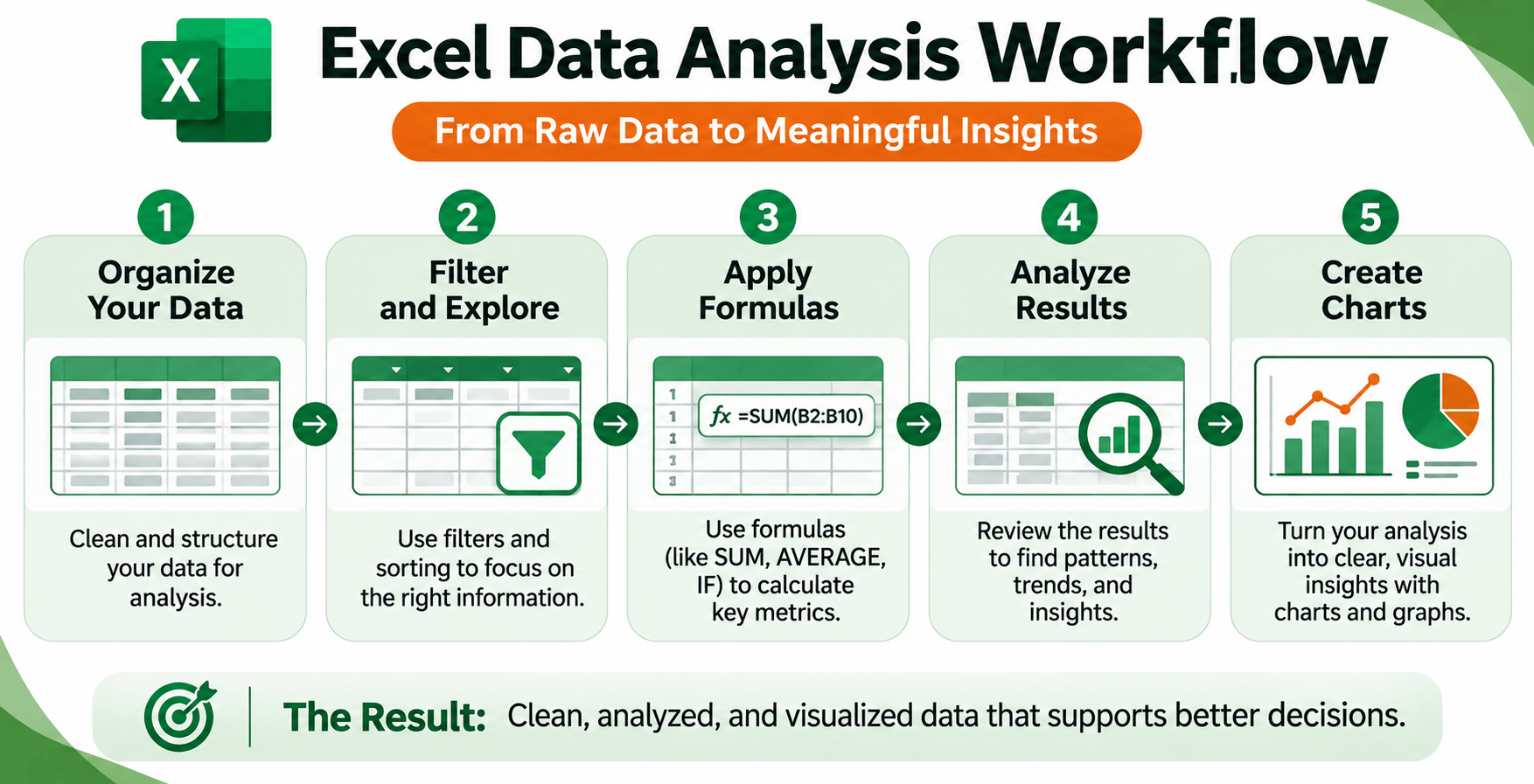
An analyst building a monthly sales report can use a table to organize the raw records, filters to isolate a region, formulas for the totals, and a chart to show the trend.
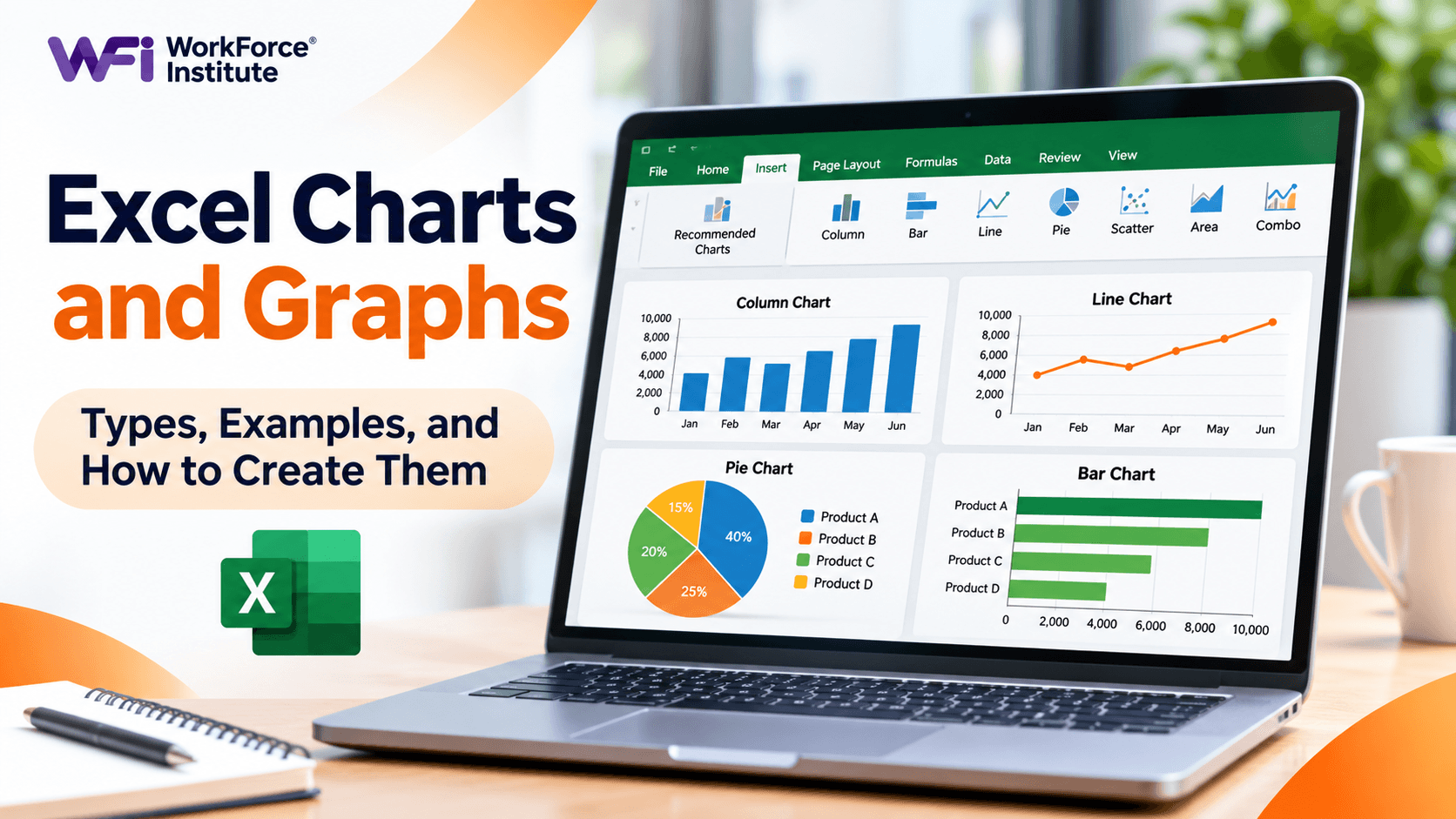
Learn more about creating effective visualizations in our guide to Excel charts and graphs. You can also explore our guide to SQL for data analysis to understand how analysts work with larger datasets beyond spreadsheets.
9. Excel Shortcuts for Windows vs. Mac
Many Excel shortcuts differ between Windows and Mac. Some commands use Ctrl on Windows and Command on Mac. Others use a different key combination entirely.
| Action | Windows | Mac |
|---|---|---|
| Copy | Ctrl + C | Command + C |
| Paste | Ctrl + V | Command + V |
| Cut | Ctrl + X | Command + X |
| Undo | Ctrl + Z | Command + Z |
| Save | Ctrl + S | Command + S |
| Find | Ctrl + F | Command + F |
| Bold | Ctrl + B | Command + B |
| Italic | Ctrl + I | Command + I |
| Underline | Ctrl + U | Command + U |
Note: Mac shortcut behavior can vary depending on the Excel version, keyboard layout, and macOS settings. Check the shortcuts available in your version of Excel before relying on a particular combination.
10. Practical Tips to Remember Excel Shortcuts
Learning dozens of shortcuts at once is hard. Build the habit a few commands at a time.
- Start with frequently used shortcuts: Learn copy, paste, undo, save, and find first.
- Practice on real spreadsheets: Apply shortcuts while working with budgets, sales reports, or customer records.
- Learn shortcuts by category: Focus on navigation, formatting, formulas, and data management separately.
- Use a cheat sheet: Keep a reference list nearby until the combinations become familiar.
- Practice consistently: Use a few new shortcuts every day instead of memorizing all of them at once.
Frequently Asked Questions About Excel Shortcuts
What are the most useful Excel shortcuts for beginners?
Start with Ctrl + C to copy, Ctrl + V to paste, Ctrl + Z to undo, Ctrl + S to save, Ctrl + F to find, and Ctrl + B for bold.
What is the shortcut to find something in Excel?
On Windows, press Ctrl + F. On Mac, press Command + F. Then type the text or value you want to find.
How do I select an entire column in Excel?
Click a cell in the column and press Ctrl + Space on Windows. That selects the whole column.
What is the shortcut to create a table in Excel?
On Windows, press Ctrl + T to open Create Table for the selected range. Confirm the range and whether the data has headers.
How can I quickly add numbers in Excel?
On Windows, press Alt + = to insert AutoSum. Excel suggests a range of neighboring numbers to add.
Are Excel shortcuts the same on Windows and Mac?
No. Many common shortcuts use Ctrl on Windows and Command on Mac, and some commands use a different combination. Check the list for your Excel version and operating system.
Improve Your Data Analysis Skills with WorkForce Institute
Knowing Excel shortcuts is a useful first step toward working more efficiently with data. However, professional data analysis also involves cleaning datasets, understanding formulas, interpreting results, and presenting insights clearly.
If you want to develop practical data analytics skills and learn how modern AI-powered tools can support analytical workflows, explore the learning options available at WorkForce Institute.
Choose the learning format that works best for you:
You can also explore our article on data visualization methods to learn how to communicate findings and turn data into meaningful insights.
Start practicing these Excel shortcuts in your everyday work. With consistent use, you can spend less time navigating spreadsheets and more time focusing on the information that matters.