AI Assistants for Productivity: Use Cases, Benefits, and Tools
An AI assistant can take a messy task and give you a first draft, a short summary, or a list you can actually work from. People use them to write emails, sort through long documents, plan projects, and make sense of data, so more of the day goes to work that needs a human decision.
These tools are easy to try now, which is why individuals and teams are fitting them into ordinary work: writing, research, scheduling, brainstorming, and simple automation.
The useful part is knowing what an assistant can do well, where it saves real time, and where you still need to check the result yourself.
This guide covers what AI assistants for productivity are, the jobs they handle most often, what they do well, where they fall short, and which tools are worth a look.
What Are AI Assistants for Productivity?
An AI assistant for productivity is software that helps you finish a task, sort information, or get work into a clearer shape. You can talk to it in plain language. It can write, summarize, answer questions, and help with other parts of the workday.
Older productivity software mostly waits for a specific command. Many AI assistants work more like a conversation. You describe what you need, and the tool comes back with a draft, a summary, or a next step.
Someone might ask an assistant to:
- Turn a long report into five main points.
- Draft a professional email from a few notes.
- Build a project checklist from a meeting transcript.
- Explain a complicated idea in simpler language.
- Put scattered notes into a table.
- Suggest ideas for a presentation or a marketing campaign.
Some assistants also connect to calendars, documents, chat tools, and project software. That lets you use them inside the apps you already open every day.
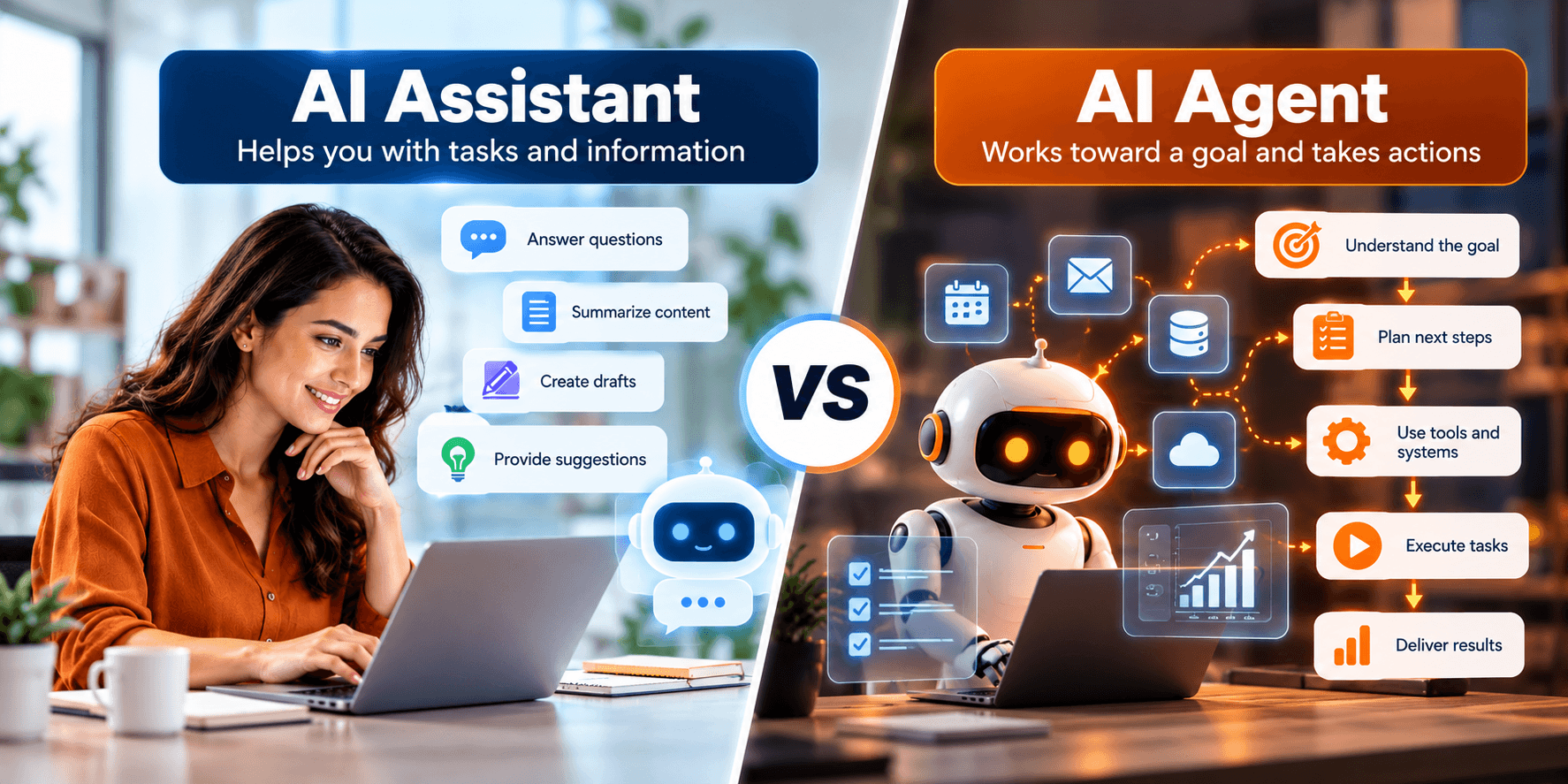
An assistant and an AI agent are related, but they are not the same thing. Many assistants wait for your instruction and answer it. An agent may be built to plan several steps and carry them out. The difference is explained in our guide to AI agents vs. AI assistants.
How AI Assistants Improve Productivity
The time savings usually show up in work that is repetitive, heavy on reading, or the same every week. An assistant rarely takes over a whole process. It handles one piece that would otherwise take a person a long time.
A marketer might use one to sketch campaign ideas, outline a piece of content, and pull the main points from audience research. They still decide what is worth keeping, rewrite what does not sound right, and choose the direction.
Used that way, the tool does part of the work. The person still owns the quality, the facts, and the strategy.
Common Use Cases of AI Assistants for Productivity
The same assistant can help in very different jobs. How useful it is depends on the task, how clearly you explain what you want, and what that particular tool can actually do.
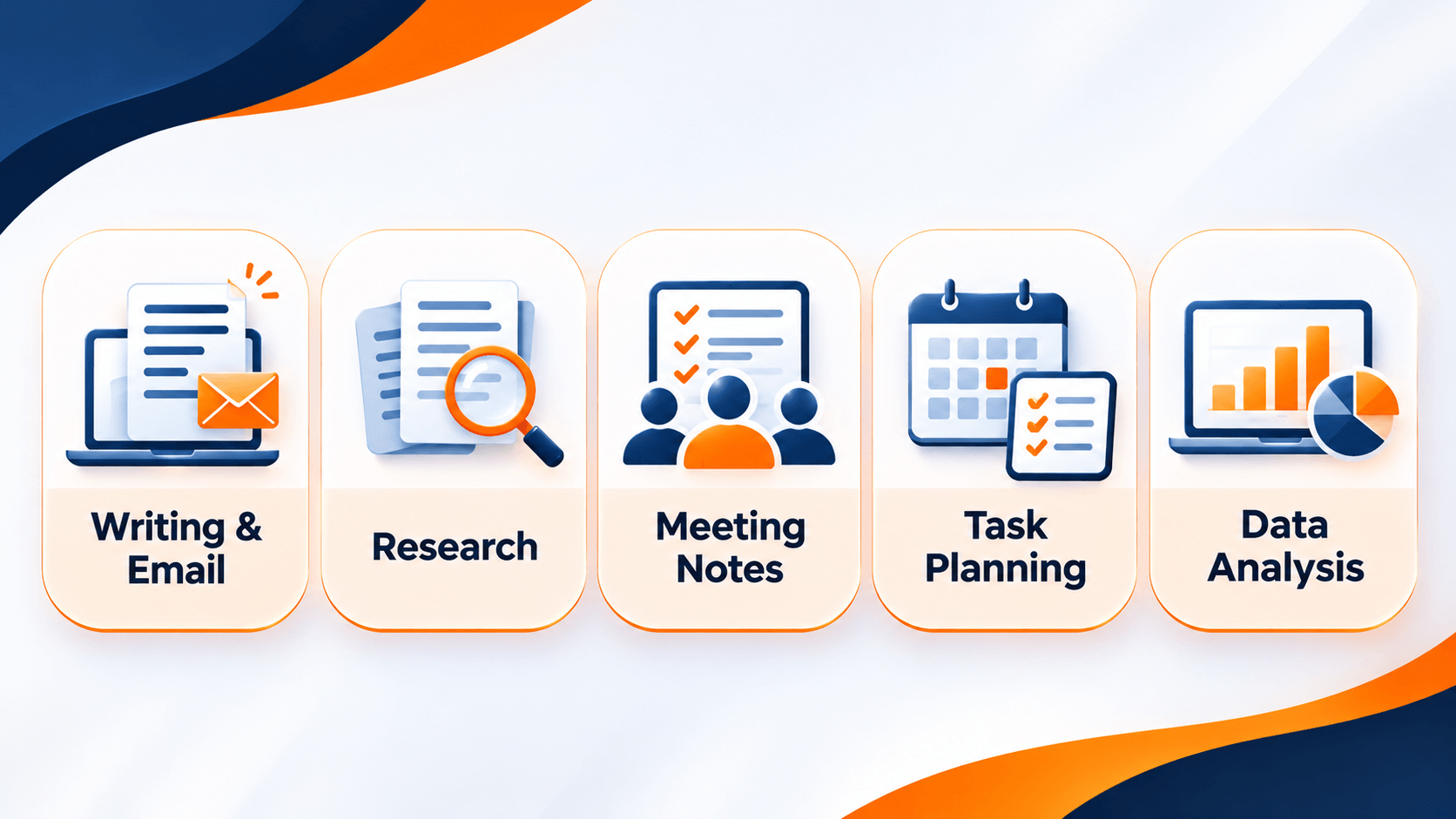
1. Writing and Email Management
Writing is where most people start. An assistant can draft something, tighten it, or help you get a message into the right tone.
Typical writing tasks include:
- Drafting professional emails and other business messages.
- Rewriting a passage so it is clearer or sounds more like you.
- Outlining a blog post or a first draft of an article.
- Shortening a long email thread.
- Catching grammar problems and making a paragraph easier to read.
- Starting a report or a proposal so you are not staring at a blank page.
You might paste the main points of a project update and ask for a short email to your manager. You still read it before you send it, and you change anything that does not sound like the update you meant.
Do not send AI writing as-is when the facts matter. A fluent sentence can still say the wrong thing.
For more everyday examples, see our guide to ways to use ChatGPT at work, including writing, planning, research, and organizing day-to-day tasks.
2. Research and Information Summarization
A lot of work is reading: articles, reports, papers, and long internal documents. An assistant can shorten that material and pull out the points you need to remember.
Research tasks often include:
- Summarizing a report or a document.
- Pulling the main findings out of something you already have.
- Turning notes into a cleaner research outline.
- Lining up points from more than one source.
- Explaining a technical topic in plainer language.
A business analyst reading a market report might ask for the main findings, the numbers that matter, and what those numbers could mean for the business.
A summary is not a substitute for the original when the details, the context, or the exact wording matter. If the assistant cites a fact, check it against a source you trust.
3. Meeting Notes and Follow-Ups
Meetings leave behind decisions, tasks, and people who are supposed to do them. An assistant can turn notes or a transcript into something the team can use.
Depending on the tool and what it is connected to, that can include:
- Summarizing what was discussed.
- Listing decisions and action items.
- Sorting tasks by owner or deadline.
- Drafting the follow-up email.
- Building a meeting agenda.
After a project meeting, you can hand over the transcript and ask for the decisions, the assigned tasks, and the questions that were left open.
If a meeting is being recorded or transcribed, people in the room should know. Follow your company's privacy rules before you do it.
4. Task and Project Management
Project work is often a pile of requirements that still needs owners, order, and a status update someone else can read. An assistant can help with that sorting.
Common uses include:
- Turning project requirements into a task list.
- Breaking a large project into smaller steps.
- Drafting a plan or a rough timeline.
- Shortening a status update.
- Flagging possible risks from the information you provide.
- Starting a progress report.
A project manager can paste a brief and ask for a first pass at the task breakdown. They still assign owners, set dates that the team can actually meet, and change the plan when resources are tight.
Treat that plan as a draft. Dependencies, who is available, and what the business cares about most still need a person.
5. Data Analysis and Reporting
Some assistants can help you look through data, notice a pattern, and start a report. What they can open depends on the tool. Some work with spreadsheets, structured files, or uploads.
Data tasks can include:
- Summarizing what is in a spreadsheet.
- Pointing out trends and numbers that look unusual.
- Explaining a chart or a table.
- Suggesting a formula or a SQL query.
- Drafting the first version of an analysis.
- Walking through a statistical idea.
An analyst might share monthly sales figures and ask for a first read on what changed by region.
Check any calculation, formula, or conclusion before it goes into a decision. Do not upload confidential or sensitive data to a tool your organization has not approved for that information.
6. Workflow Automation
Some assistants can connect to other apps or walk through a series of steps for you. How far that goes depends on the platform, the integrations you turn on, the permissions, and the plan you pay for.
Examples include:
- Sorting incoming information into categories.
- Drafting replies to questions the team hears often.
- Pulling details out of documents.
- Turning form submissions into task lists.
- Summarizing selected business records.
A team might set up an approved workflow that summarizes new customer feedback and groups it by topic. People still read those summaries and decide what needs a response.
Build in a check when the workflow touches customers, money, confidential records, or a decision that is hard to undo.
Best AI Assistants for Productivity
Plenty of assistants can help with daily work, and they are not interchangeable. Some are general tools. Others sit inside the software a company already uses, or they are stronger at one kind of task.
These are practical options to compare.
1. ChatGPT
ChatGPT is a general assistant for writing, brainstorming, research, learning, coding, data work, and other tasks.
People often use it to:
- Draft and edit writing.
- Summarize information.
- Explain a difficult topic.
- Look through files and datasets the tool supports.
- Come up with ideas and structured plans.
- Help with coding and technical problems.
It fits people and teams who want one assistant for many kinds of work. What you can do depends on the plan, the settings, and the tools turned on for that account.
2. Microsoft Copilot
Microsoft Copilot brings AI help into supported Microsoft products.
Depending on the version and how the organization has set it up, Copilot can help with:
- Drafting and revising documents.
- Summarizing information.
- Preparing presentation content.
- Working with spreadsheet data.
- Communication and meeting tasks.
It is a natural fit for companies that already live in Microsoft apps. What it can do depends on the Copilot product and the license.
3. Google Gemini
Google Gemini is Google's assistant. It can help with writing, brainstorming, summaries, learning, and working through problems.
Depending on the version and the integrations available, Gemini can support:
- Drafting and refining content.
- Summarizing information.
- Generating ideas.
- Explaining concepts.
- Tasks inside selected Google products.
It makes sense if you already work in Google's tools. Features and connections change by product, account, and subscription.
4. Claude
Claude is Anthropic's assistant. It can help with writing, reasoning, coding, reading long documents, and other knowledge work.
People often use it for:
- Long documents.
- Drafting and editing.
- Summarizing material you provide.
- Looking through supported files.
- Software and other technical tasks.
It is worth trying if a lot of your work is reading, writing, or solving a technical problem. Features depend on the version and the plan.
5. Notion AI
Notion AI sits inside a Notion workspace.
Depending on the workspace and the features included, it can help you:
- Summarize notes and documents.
- Draft and revise writing.
- Organize information.
- Work with knowledge already stored in the workspace.
- Handle documentation and project tasks.
It is most useful for teams that already keep projects, docs, and internal knowledge in Notion. What you get depends on the workspace plan and the current product.
AI Productivity Tools Compared
The right assistant depends on the work you do, the apps you already use, and the features you actually need.
| AI Assistant | Common Use Cases | Best Fit |
|---|---|---|
| ChatGPT | Writing, brainstorming, analysis, learning, and coding | General-purpose productivity |
| Microsoft Copilot | Document, spreadsheet, presentation, and workplace assistance | Microsoft-based workflows |
| Google Gemini | Writing, research, brainstorming, and supported Google workflows | Google-based workflows |
| Claude | Document analysis, writing, reasoning, and coding | Document-heavy and technical work |
| Notion AI | Notes, documentation, workspace content, and knowledge management | Teams using Notion |
This is a starting comparison, not a ranking. These products change often. The better choice is the one that fits your work, your integrations, your data rules, and your budget.
Benefits of Using AI Assistants for Productivity
Used on the right tasks, an assistant can take some of the grind out of a normal workday.
1. Save Time on Routine Tasks
Drafting an email, shortening a document, sorting notes, or starting a report takes less time when you are editing a draft instead of building it from nothing.
That leftover time can go to work that needs creativity, careful thinking, or a decision.
2. Improve Workflow Efficiency
An assistant can help you get information into a usable shape and move through a step faster. A project manager can turn a brief into a first checklist instead of writing every line by hand.
You still review it. The gain is a starting point, not a finished plan.
3. Support Creativity and Brainstorming
An assistant can offer ideas, other ways to approach a problem, and angles you had not written down yet.
A writer can use it to list article topics. A marketer can test campaign angles. A team can ask for possible ways through a business problem.
Those ideas still need a person. Keep what fits the goal, and drop what is generic or off the brief.
4. Make Information Easier to Understand
An assistant can explain a hard idea, shorten a long document, or rearrange information so it is easier to follow.
That helps when you are learning software, reading technical docs, or working in a subject that is new to you.
5. Support Better Organization
Loose notes can become a task list, an outline, a summary, or another format you can act on.
A brainstorm can become a plan. A long discussion can become the follow-ups someone needs to own.
Challenges and Limitations of AI Assistants
These tools can save time, and they also get things wrong. It helps to know the limits before you rely on them.
Accuracy and Reliability
An assistant can state something that is false, miss what you asked, or write an answer that sounds sure and still has no support.
Check facts, numbers, citations, and recommendations before you use them.
Privacy and Data Security
Some work involves confidential business information, customer records, or personal data. Read how a tool handles data, and follow your organization's security rules.
Share confidential information only with tools that are approved for that kind of data.
Overdependence on AI
If the assistant does the thinking every time, you get fewer chances to practice the skill or judge the information yourself.
Use it to support your judgment. It should not replace critical thinking, professional responsibility, or the person who is accountable for the result.
Integration and Learning Requirements
Some tools need setup, training, or a connection to software you already use. A team may need time before the assistant feels natural.
Ask whether the time saved is worth the cost, the setup, and the upkeep.
How to Choose the Right AI Productivity Assistant
More features do not automatically make a better assistant. The better one is the tool that fits the work you already do and helps you finish it.
These questions narrow the choice.
Identify Your Main Tasks
Start with the work where you actually want help. A writer may care most about drafting and editing. An analyst may care more about spreadsheets and reports.
Evaluate Available Features
Compare the capabilities that match your work, such as document support, integrations, file analysis, collaboration, and automation.
Confirm that those features are included in the plan you would actually buy.
Consider Integration With Existing Tools
An assistant that already lives in your apps is easier to use every day.
Teams on Microsoft 365 often look at Microsoft Copilot. Teams in Google Workspace often look at the Gemini integrations available to them.
Review Security and Privacy Policies
Before you use an assistant for work, look at how it handles data, what it can access, and which privacy controls you can turn on.
Companies should also say clearly which information employees may share with an AI tool.
Compare Cost and Value
Add up the real cost: the subscription, extra licenses, integrations, and the time it takes people to learn the tool.
A tool that does a few important jobs well can be more useful than a large platform full of features nobody opens.
Best Practices for Using AI Assistants at Work
Typing a vague request and hoping for the best is a slow way to work. Clear instructions, a real review, and care with data make the result more useful.
Write Clear and Specific Prompts
Say what you need, give the context that matters, and describe the format you want back.
A weak request looks like this:
Write an email.
A clearer one looks like this:
Draft a professional email to a project manager explaining that a website content update is delayed by two days. Keep the tone polite, explain the reason briefly, and include a revised delivery date.
The second version gives the assistant enough to come back closer to what you would actually send.
Review AI-Generated Results
Read the result before it goes into an important email, a report, or a decision.
Check the facts, the numbers, the tone, the context, and any claim that needs evidence. That review matters more when the content affects customers, money, compliance, or a company decision.
Use AI for Assistance, Not Blind Automation
An assistant can draft, organize, and suggest a next step. The decision still belongs to the person responsible for it.
It might summarize customer feedback. A teammate should still decide what the feedback means and what the team should do.
Protect Sensitive Information
Do not paste confidential business information, personal data, passwords, or sensitive records into a tool unless that tool, and its data policy, is approved for that use.
Follow your organization's AI rules, and use the access controls you already have.
Measure Productivity Improvements
Check whether the assistant is actually making the work faster or better.
Compare how long a task took before and after, look at the quality of what came back, and notice whether the repetitive part got smaller.
More AI-written text is not the same as more useful work. Measure the outcome, not the volume.
The Future of AI Assistants for Productivity
Assistants are moving past a chat box. More of them are being built into the tools people already use, so they can help coordinate tasks and support longer workflows.
How much that helps still depends on the person using them.
People who know what these tools can and cannot do, give clear instructions, check the output, and use their own judgment will get more from them.
Learning to work with AI is becoming part of ordinary digital skill. Knowing the tools, their limits, and where they fit can make it easier to keep up as the work itself changes.
Frequently Asked Questions
What are AI assistants for productivity?
They are software tools that use artificial intelligence to help with tasks such as writing, research, summaries, planning, and looking at data.
What is the best AI assistant for productivity?
It depends on the work. ChatGPT covers a wide range of general tasks. Microsoft Copilot fits many Microsoft workflows. Gemini fits people working in Google's tools. Claude is strong for writing and document work. Notion AI helps teams that already work in Notion.
Can AI assistants improve workplace productivity?
Yes, on the right tasks. They can shorten routine work, organize information, help with brainstorming, and produce a first draft. The result still depends on the task, how clearly you ask, and whether you review what comes back.
Are AI productivity assistants free?
Some offer a free version. Others are paid subscriptions or business plans. Features, limits, and prices differ by provider and change over time.
Can AI assistants replace employees?
They can take on or support certain tasks. They do not cover the full range of what a person does at work. Critical thinking, creativity, communication, accountability, and professional judgment still matter.
How can beginners start using AI assistants?
Start small. Draft an email, summarize a document, brainstorm a few ideas, or turn notes into a list. Practice writing a clear request, read the answer, and follow the privacy rules that apply to your work.
Conclusion
AI assistants can help people and teams move faster on writing, research, project work, data, and other everyday tasks.
ChatGPT, Microsoft Copilot, Google Gemini, Claude, and Notion AI each fit a different kind of workflow.
Pick the one that matches the work you do. Use it where it genuinely saves time, and keep a person in charge of accuracy, security, and the decisions that matter.
As AI becomes a normal part of work, knowing how to use these tools carefully is a practical skill, not a side project.